

Starting now, OneCrewRecords sends notifications straight to your phone or computer, even when the app or browser is closed. New forum replies, replies to your ticket, released royalties, the status of your releases, and messages in your inbox appear instantly on your lock screen. With one tap, you land right where you need to be.
Turning it on takes one minute. You enable each device separately, so phone and computer individually.
On your phone (Android) and on your computer
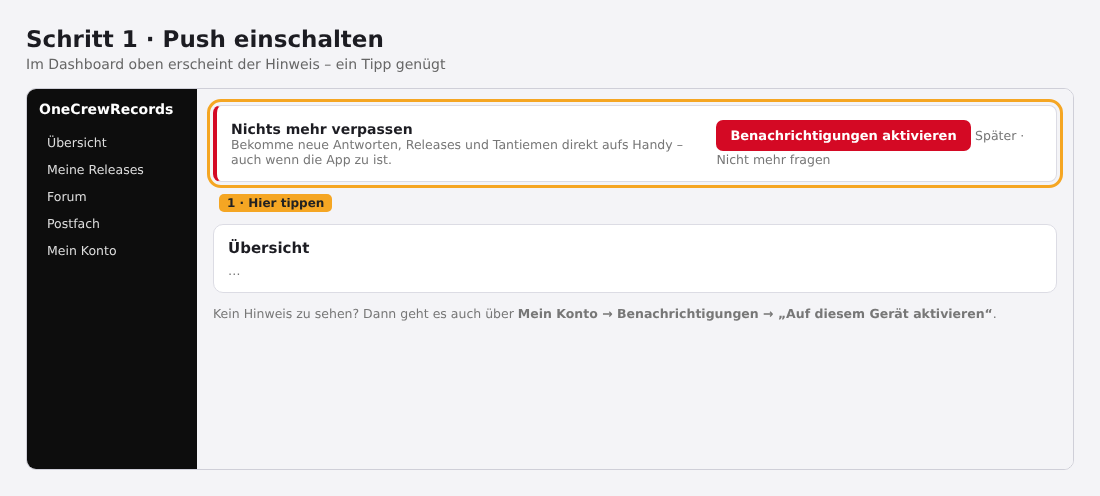
Step 1: Enable. Open your dashboard. The notice "Never miss a thing" appears at the top. Tap Enable notifications. If you don't see the notice, go to My Account → Notifications and tap Enable on this device.
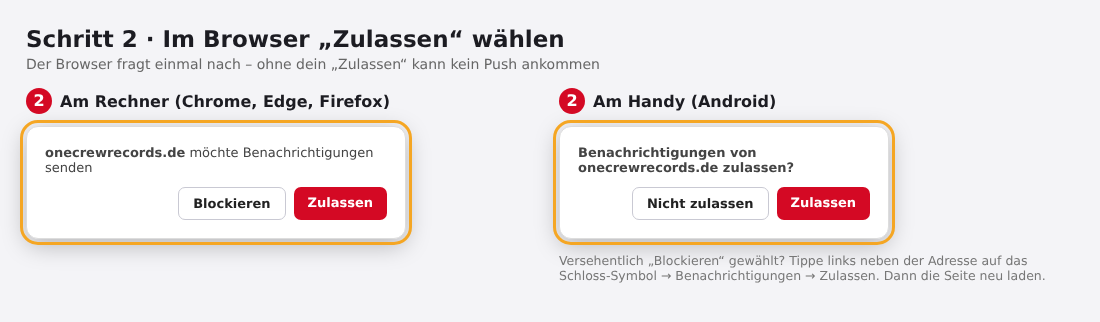
Step 2: Choose "Allow" in the browser. Your browser will ask once. Choose Allow. Without this permission, no notification can arrive.
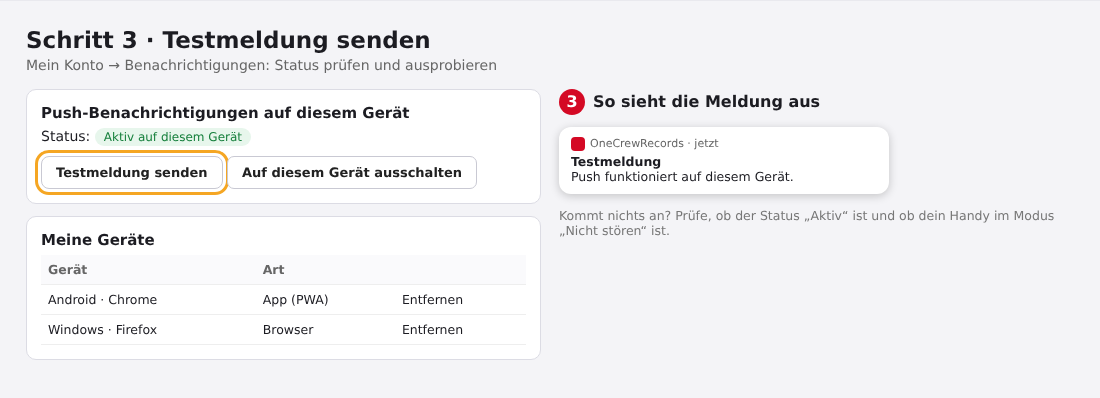
Step 3: Send a test notification. Under My Account → Notifications it now says "Active on this device". Tap Send test notification. After a few seconds, the notification appears on your device.
iPhone and iPad
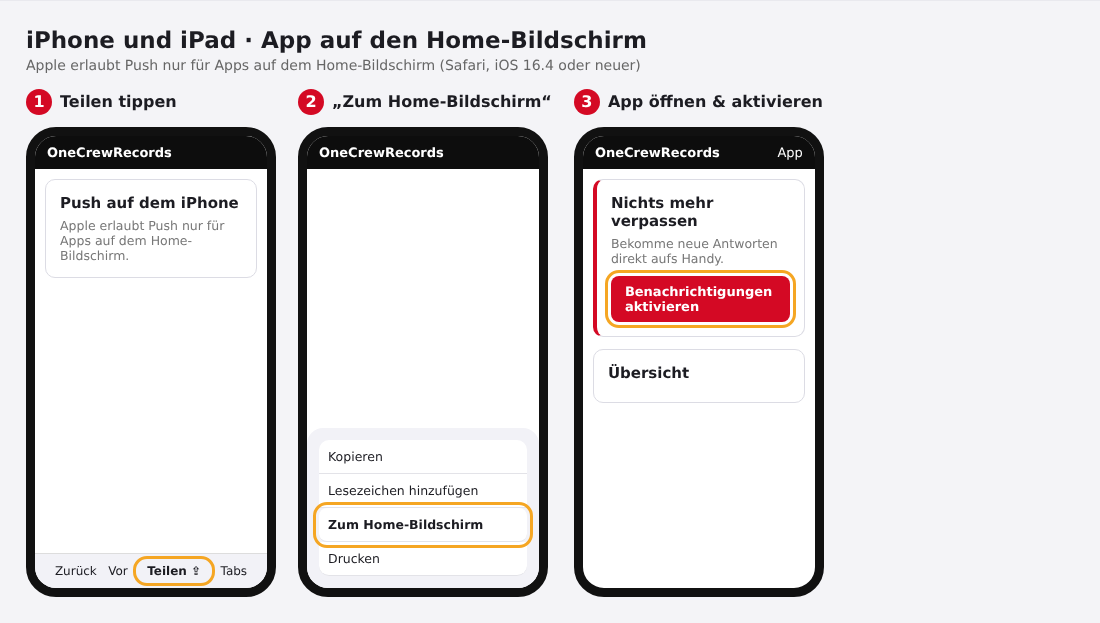
Apple only allows push for apps on the Home Screen. You need Safari and iOS or iPadOS 16.4 or newer. There is no push in a regular Safari tab.
Step 1: Tap Share. Open the dashboard in Safari and tap the Share icon at the bottom.
Step 2: Add to Home Screen. Choose Add to Home Screen and confirm with "Add".
Step 3: Open the app and enable. Open OneCrewRecords via the new icon on your Home Screen and tap Enable notifications.
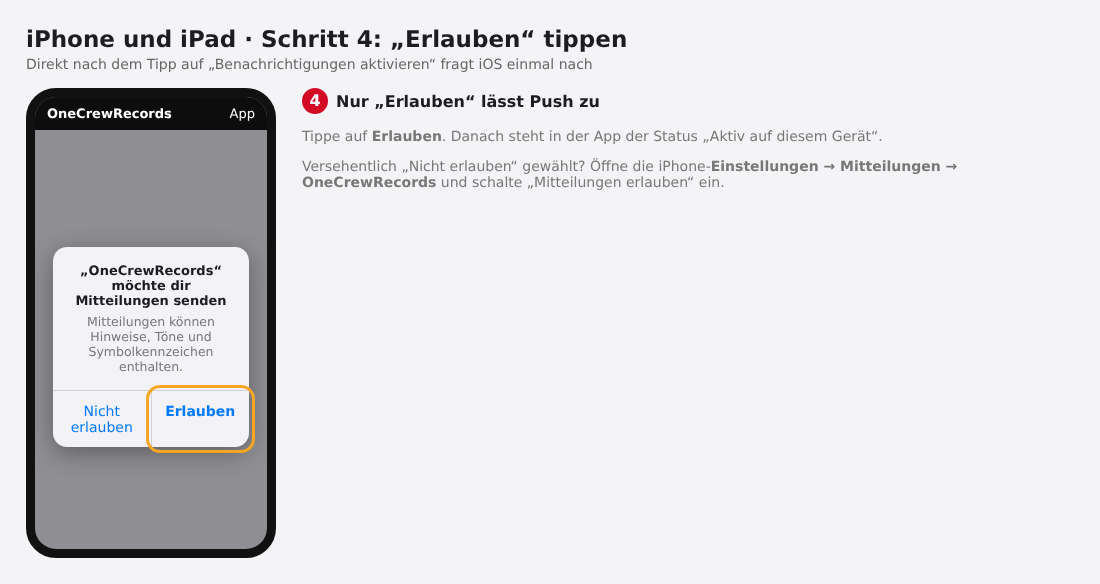
Step 4: Tap Allow. iOS will ask once. Tap Allow. If you accidentally chose "Don't Allow", open the iPhone settings, then Notifications → OneCrewRecords and turn on "Allow Notifications".
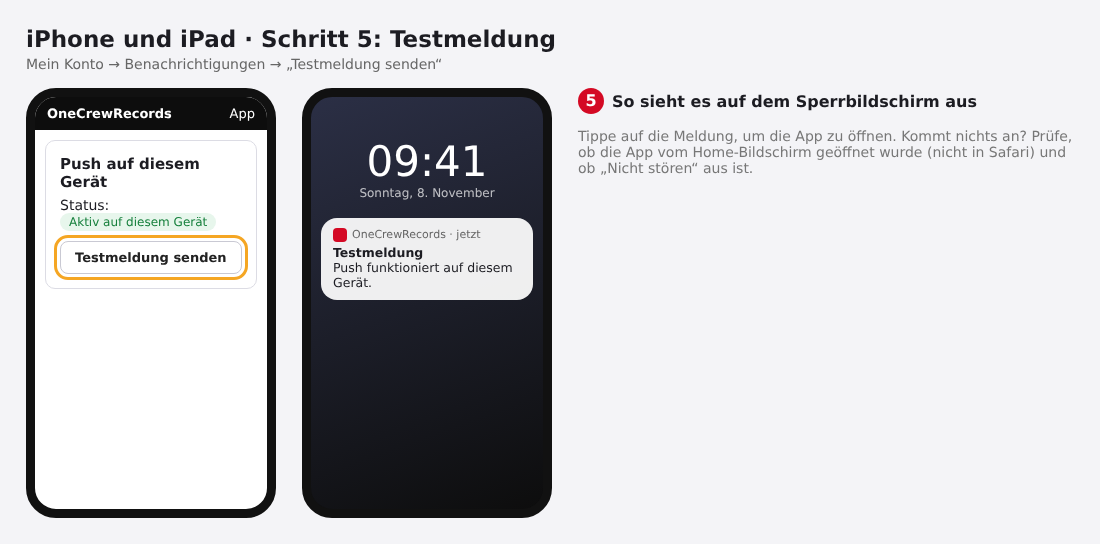
Step 5: Send a test notification. Under My Account → Notifications, tap Send test notification. It will appear on the lock screen.
On the iPhone, there are no buttons in the notification. Tapping it takes you straight to the right page in the dashboard.
Choose what you want to receive
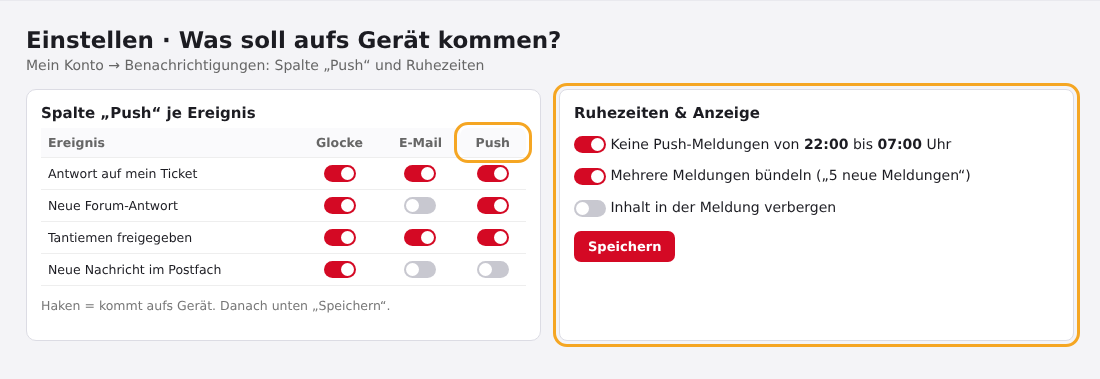
Under My Account → Notifications, there is a new Push column for every event. Check the box next to everything you want to receive on your device, then tap Save. The bell and email are not affected by this.
You can also set the following:
- Quiet hours: for example, no push notifications from 22:00 to 07:00. The notifications will still show up in the bell.
- Bundling: several notifications are combined into one, for example "5 new notifications".
- Hide content: the lock screen only shows "New notification", without any text.
- Manage devices: under "My Devices", you can see all signed-in devices and remove any of them.
Not working? This will help
- Nothing arrives: Check whether the status says "Active on this device" and whether your phone is in "Do Not Disturb" mode.
- Accidentally selected "Block" (browser): Tap the lock icon next to the address, select Notifications, then Allow, and reload the page.
- iPhone: no Enable button: You're still in Safari. Open the app using the icon on your Home Screen.
- No prompt visible: Then you've either hidden it or push is already running. You can turn it on at any time under My Account → Notifications.
Enjoy, and thanks for being part of OneCrewRecords!